
Window Graphics: Turn Your Storefront into a 24/7 Billboard
Transform your storefront into a 24/7 billboard! Discover how store window graphics, from decals to lettering, boost visibility, attract customers, and enhance your brand.
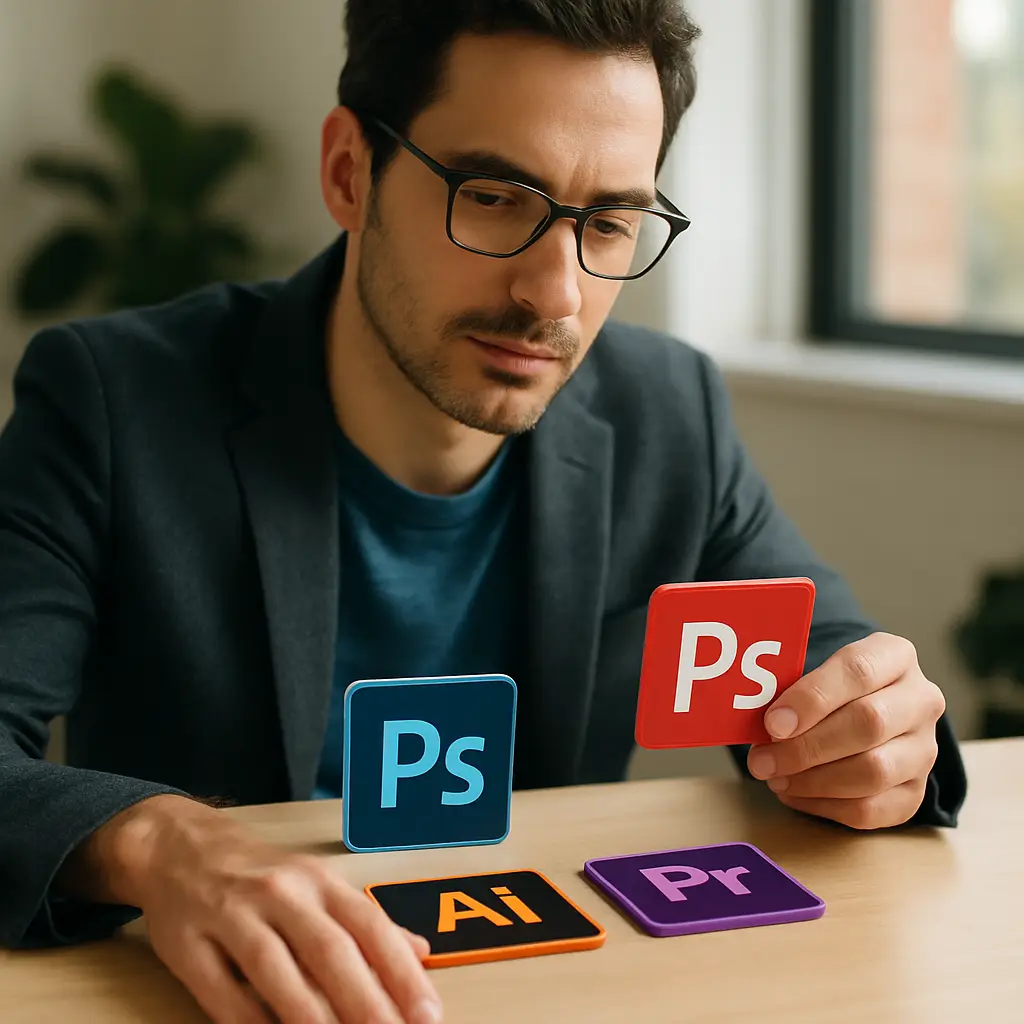
Navigating the world of Adobe’s graphic design software can feel overwhelming, especially with three powerhouse tools at the core. Photoshop, Illustrator, and InDesign form a creative trinity, and while they often work together, they are fundamentally different programs built for distinct purposes. This is the heart of the Illustrator vs Photoshop vs InDesign debate. The key isn’t to pick a single “best” tool, but to understand which one is right for your specific task. Is it a pixel-perfect photo edit, a scalable logo, or a multi-page brochure? This definitive Adobe guide will demystify their roles, breaking down the critical raster vs vector distinction and providing a clear Adobe software comparison. By the end, you’ll know exactly when to launch Photoshop, Illustrator, or InDesign to bring your creative vision to life efficiently and professionally.
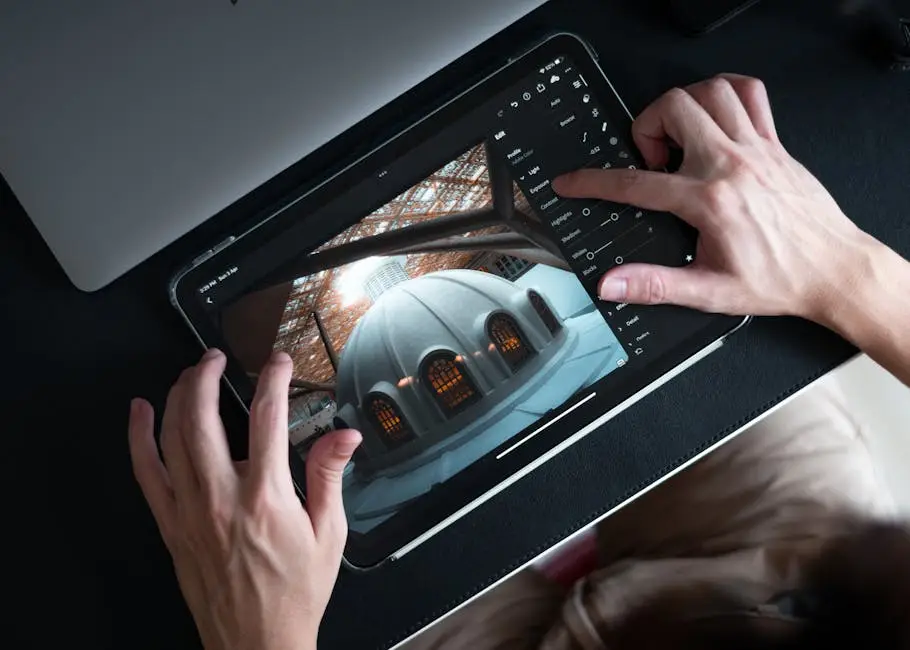
At its core, Adobe Photoshop is the undisputed champion of pixel-based imagery, making it the industry-standard photo editing software. It operates on a raster grid, meaning every image is composed of a fixed number of tiny colored squares called pixels. This is a critical point in the raster vs vector debate; because Photoshop works with pixels, its images lose quality when scaled up significantly, leading to blurriness. So, when to use Photoshop? It’s your go-to tool for editing, retouching, and compositing photographs, creating complex digital paintings, and designing web graphics like banners and social media images where dimensions are fixed. If your project starts with a photograph or requires detailed, pixel-level manipulation, Photoshop is the digital darkroom you need. It’s the first essential piece in understanding the full Illustrator vs Photoshop vs InDesign puzzle.
Think of a raster image as a detailed mosaic built from thousands of tiny colored squares, or pixels. Each pixel has a fixed position and color on a grid. When you edit in Photoshop, you’re manipulating these individual pixels—changing their color, adjusting brightness, or blending them together. This pixel-level control is what makes it the ultimate photo editing software. However, this structure is also its main limitation: because the number of pixels is fixed, enlarging the image simply stretches them, causing blurriness. This is the core of the raster vs vector distinction.
The power of pixel manipulation directly answers the question of when to use Photoshop. It’s the definitive tool for photo editing and retouching, whether you’re correcting exposure, removing blemishes, or creating surreal photo composites. Digital painters leverage its vast brush engine to create rich, textured artwork. For the web, Photoshop is perfect for designing fixed-dimension graphics like social media posts and website banners, where scalability isn’t a primary concern. It is the premier photo editing software for any task rooted in pixels.
Understanding Photoshop’s limitations is as crucial as knowing its strengths. Due to its pixel-based nature, it is the wrong choice for logo design. Logos require infinite scalability to look crisp on both a tiny business card and a massive billboard, which is impossible for raster graphics that blur when enlarged. This is a critical point in the raster vs vector debate. Similarly, avoid it for multi-page layouts like magazines or brochures; it lacks the robust text-handling and page-management tools of dedicated page layout software.
Where Photoshop is the master of pixels, Adobe Illustrator is the ruler of lines and shapes. As the industry’s leading vector-based graphic design software, it represents the other side of the crucial raster vs vector divide. Instead of using a grid of pixels, Illustrator creates graphics using mathematical equations to define points, lines, and curves. The power of this vector approach is infinite scalability. This directly answers the question of when to use Illustrator: for any artwork that needs to look crisp and clean at any size. This makes it the undisputed choice for creating logos, icons, complex illustrations, and typography. If your project needs to be resized, from a tiny app icon to a massive billboard, Illustrator ensures flawless quality. Understanding this fundamental difference is a critical step in navigating the Illustrator vs Photoshop vs InDesign landscape and choosing the right tool for your design.
Unlike a raster image’s pixel mosaic, a vector graphic is built from mathematical paths, points, and curves. Think of it as a set of instructions: “draw a curved line from point A to point B.” Because it’s based on these formulas, not a fixed grid, you can scale it to any size—from a tiny icon to a giant billboard—and the computer simply redraws it with perfect precision. This ensures sharp, clean lines at any resolution, which is the defining advantage in the raster vs vector debate.
So, when to use Illustrator? The definitive answer lies in scalability. It is the non-negotiable choice for logo design, as a logo must look flawless whether on a tiny web favicon or a massive billboard. The same logic applies to creating icons and complex illustrations that require resizing without quality loss. Illustrator also excels at creating custom typography and data-rich infographics, where clean, sharp lines are critical for clarity and impact. For these core tasks, it is the superior piece of graphic design software.
Just as Photoshop falters with scalable logos, Illustrator is the wrong choice for photo editing. Its vector nature isn’t built for manipulating the millions of pixels that make up a photograph, so it lacks the detailed retouching and color correction tools of a dedicated photo editing software. Likewise, avoid it for multi-page documents. While it can handle text on a single-page design, it lacks the robust page management and advanced text-flow features needed for magazines or books, which is where dedicated page layout software shines.
While Photoshop masters pixels and Illustrator commands vectors, Adobe InDesign is the ultimate conductor, bringing all the elements together. It is the premier page layout software designed to combine text, raster images from Photoshop, and vector graphics from Illustrator into cohesive, multi-page documents. This is the crucial third component in the Illustrator vs Photoshop vs InDesign comparison. Think of it as the final production studio. So, when to use InDesign? It’s your essential tool for creating anything with extensive text and a structured layout, such as magazines, brochures, annual reports, interactive PDFs, and books. It excels at managing typography across many pages, handling complex grids, and ensuring your final publication is polished and print-ready. For any project focused on layout and publication rather than asset creation, InDesign is the undisputed professional choice in this comprehensive Adobe guide.
Think of InDesign as the digital drafting table where all your creative assets come together. Its core purpose isn’t creating the graphics or editing the photos, but arranging them with text into a professional, structured layout. This is what makes it premier page layout software. It uses frames as containers for text and images, and its power lies in features like master pages for consistency across a document and complex grids for precise alignment, making it the essential final assembly stage in any Illustrator vs Photoshop vs InDesign workflow.
The question of when to use InDesign is answered by any project that prioritizes structure and text. It’s the industry standard for creating multi-page magazines, professional brochures, and entire books, where its master pages and paragraph styles ensure consistency. InDesign is also the superior choice for crafting interactive PDFs with hyperlinks and buttons, or for assembling a polished digital portfolio. For any layout-heavy task combining text and graphics, it is the definitive page layout software designed for final production and assembly.
InDesign’s strength is layout, not asset creation. Therefore, avoid it for complex image manipulation; it lacks the deep pixel-level controls of dedicated photo editing software like Photoshop. Likewise, never use it to design a logo from scratch. That task requires the robust vector drawing tools of professional graphic design software like Illustrator. Understanding this separation of duties is key to an efficient Illustrator vs Photoshop vs InDesign workflow, where assets are created elsewhere and assembled here for final publication.
To bring the entire Illustrator vs Photoshop vs InDesign debate into sharp focus, it helps to see their core functions side-by-side. We’ve explored the details, but sometimes a quick-reference summary is the most valuable tool. The essential takeaway is that each program is a specialist: Photoshop edits pixels, Illustrator creates scalable vectors, and InDesign arranges text and graphics into publishable layouts. This fundamental separation is the key to an efficient creative workflow. The following Adobe software comparison table breaks down their primary roles, underlying technology (the critical raster vs vector distinction), and ideal project types. Use this as a cheat sheet to quickly identify the best graphic design software for your specific task, whether you need a photo editor, a vector creator, or a page layout software powerhouse.
| Feature | Adobe Photoshop | Adobe Illustrator | Adobe InDesign |
|---|---|---|---|
| Core Technology | Raster (Pixel-based) | Vector (Math-based) | Page Layout Engine |
| Primary Function | Editing and manipulating existing images or creating pixel art. The go-to photo editing software. | Creating scalable graphics from scratch. The definitive graphic design software for logos and icons. | Arranging text and graphics into documents. The premier page layout software. |
| Best For | Photo retouching, digital painting, web graphics (banners, social media), image composition. | Logo design, icons, infographics, complex illustrations, typography creation. | Magazines, brochures, books, annual reports, interactive PDFs, portfolios. |
| Scalability | Limited. Loses quality when scaled up significantly (pixelation/blur). | Infinite. Can be scaled to any size without losing any quality. | Depends on the assets placed; it assembles both raster and vector elements. |
The native file formats—Photoshop Document (.psd), Adobe Illustrator (.ai), and InDesign Document (.indd)—further highlight their distinct roles. A PSD file preserves layers and pixel data, making it the source file for any task handled by a photo editing software. An AI file holds the mathematical vector paths for scalable logos and illustrations. Finally, an INDD file acts as a container, linking to your PSD and AI assets within a structured layout. Recognizing these file types is fundamental to navigating the Illustrator vs Photoshop vs InDesign workflow.
Scalability is the most critical differentiator in the Illustrator vs Photoshop vs InDesign decision, directly tied to the raster vs vector distinction. Illustrator provides infinite scalability; its vector graphics can be resized to any dimension without losing quality, making it essential for logos and icons. In contrast, Photoshop’s raster images are resolution-dependent and will pixelate when enlarged. InDesign handles both, allowing you to place and manage scalable vectors and fixed-resolution photos within a single layout, respecting the integrity of each asset type.
The primary function offers the simplest answer to the Illustrator vs Photoshop vs InDesign question. Photoshop’s function is to edit and manipulate pixel-based images, solidifying its role as the premier photo editing software. Illustrator’s function is to create scalable vector graphics from scratch, making it the go-to graphic design software for logos and icons. InDesign’s function is to arrange and publish, combining text and graphics into professional documents as the ultimate page layout software. Choose your tool based on the core action: edit, create, or arrange.
How each program handles text and images reveals its core purpose. InDesign excels at integrating both, acting as a dedicated page layout software with robust controls for multi-page text flow and linking to external images. Photoshop’s strength is deep image manipulation, but its text tools are basic and rasterize upon output, making it unsuitable for crisp, long-form copy. Illustrator handles artistic typography well for single-page designs, but InDesign’s advanced features make it the undisputed choice for combining text and graphics in professional publications.
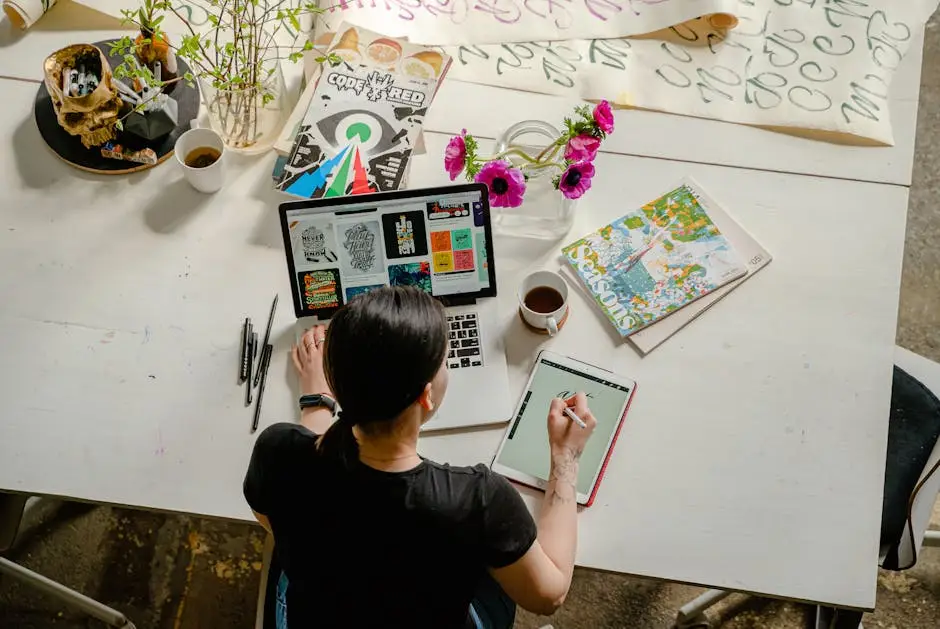
Theory and feature tables are foundational, but the true test in the Illustrator vs Photoshop vs InDesign debate is applying that knowledge to real-world creative projects. The key isn’t just picking one tool, but understanding the professional workflow and how these programs collaborate. Most complex jobs don’t rely on a single application; they require a strategic sequence. For example, a new company brochure would involve creating a scalable logo in Illustrator, editing product photos in Photoshop, and then assembling everything with body text in InDesign. The following scenarios will break down common design tasks, providing a clear roadmap for your project. This practical Adobe guide moves beyond a simple Adobe software comparison, showing you how to choose the right starting point and build an efficient process for professional results.
The answer here is clear and non-negotiable: use Adobe Illustrator. A logo’s primary requirement is infinite scalability—it must look crisp on both a tiny business card and a massive billboard. This is where the core raster vs vector distinction is most critical. Illustrator creates vector graphics that can be resized without any loss of quality. Using Photoshop would result in a pixelated, unprofessional logo when enlarged. For this essential branding task, Illustrator is the definitive piece of graphic design software, no contest.
When your project starts with a photograph, the answer is always Adobe Photoshop. As the industry-standard photo editing software, it is designed specifically for manipulating pixel-based images. Whether you’re adjusting exposure, removing unwanted objects, or performing complex color correction, Photoshop provides the deep, pixel-level control required for professional results. While Illustrator and InDesign can place photos, they lack the tools for detailed editing. This is a clear-cut scenario in the Illustrator vs Photoshop vs InDesign decision: for photos, choose Photoshop.
For a multi-page brochure, Adobe InDesign is the command center. This project perfectly illustrates the synergy in the Illustrator vs Photoshop vs InDesign workflow. You would create your logo in Illustrator and edit photos in Photoshop, then bring them all together in InDesign. Its robust features for managing text flow across pages, setting up consistent layouts with master pages, and preparing files for print make it the definitive page layout software for any document-based project, ensuring a professional and polished final product.
This scenario often causes confusion, but the primary tool is typically Adobe Photoshop. Because web banner ads are designed for specific, fixed pixel dimensions (e.g., 728×90 pixels), the infinite scalability of vector graphics is not a primary requirement. Photoshop excels at creating pixel-perfect web graphics, handling photo-based elements, and optimizing images for fast load times. While you would create a logo in Illustrator, you would import it into Photoshop to complete the banner, making it the most practical choice in the Illustrator vs Photoshop vs InDesign comparison for this task.
This is a classic Illustrator vs Photoshop vs InDesign scenario with two strong contenders, but Illustrator often wins out. Because a business card is a single-page design that relies heavily on vector assets (the logo) and crisp, clean text, Illustrator’s artboards and powerful vector tools are a perfect fit. However, Adobe InDesign is also an excellent professional choice. As a dedicated page layout software, it excels at print setup and is ideal if the card is part of a larger branding package, ensuring consistency across documents.
The real power of this creative suite isn’t found in a simple Illustrator vs Photoshop vs InDesign showdown, but in how these programs work in harmony. A professional workflow rarely relies on just one application; it leverages the unique strengths of each to build a polished final product. Imagine creating a new company brochure. The process starts in Illustrator, the essential graphic design software, to create a crisp, scalable vector logo. Next, you move to Photoshop, the go-to photo editing software, to retouch product shots and perfect the imagery. The final step happens in InDesign, the premier page layout software. Here, you assemble everything: you place the Illustrator logo, import the edited photos from Photoshop, and lay out all the text content. This collaborative process ensures every element is handled by the best tool for the job, resolving the debate by proving they are truly better together.
Let’s walk through that brochure project. First, you’d start in Illustrator, the core graphic design software, to design a scalable vector logo. Next, you would open Photoshop, the essential photo editing software, to retouch and color-correct all the product images. Finally, you assemble everything in InDesign, the dedicated page layout software. You place the Illustrator logo and the edited photos into your layout, then add and format all the text, creating a cohesive, print-ready document. This workflow solves the Illustrator vs Photoshop vs InDesign puzzle by using each tool for its specialty.
A magazine ad perfectly illustrates this professional synergy. Your workflow would start in Photoshop, the dedicated photo editing software, to retouch the ad’s hero image. Concurrently, you’d use Illustrator, the key graphic design software, to ensure the company logo is a sharp, print-ready vector. The final assembly happens in InDesign, the essential page layout software. Here you combine the edited photo, the vector logo, and the ad copy, creating a polished, print-ready document. This process solves the Illustrator vs Photoshop vs InDesign question by leveraging each tool’s strength.
After navigating the complete Illustrator vs Photoshop vs InDesign landscape, the final question is where to begin. The best starting point depends entirely on your creative goals. If you’re passionate about photography or digital art, start with Photoshop. As the industry’s top photo editing software, its skills are fundamental for any pixel-based work. If your ambition is to design logos, icons, or illustrations, your journey must begin with Illustrator. Mastering this vector-based graphic design software is essential for creating scalable artwork. For those interested in publishing, such as magazines or books, InDesign is your tool. However, since this powerful page layout software assembles assets, many find it helpful to first learn either Photoshop or Illustrator. For most aspiring designers, starting with Illustrator or Photoshop provides the strongest foundation. The ultimate goal isn’t to pick one, but to eventually understand how all three work together to form a complete, professional toolkit.
Transform your storefront into a 24/7 billboard! Discover how store window graphics, from decals to lettering, boost visibility, attract customers, and enhance your brand.
Choosing the best CMS for your business? Compare WordPress, Shopify, and Squarespace side-by-side to find the ideal platform for your online store or website.
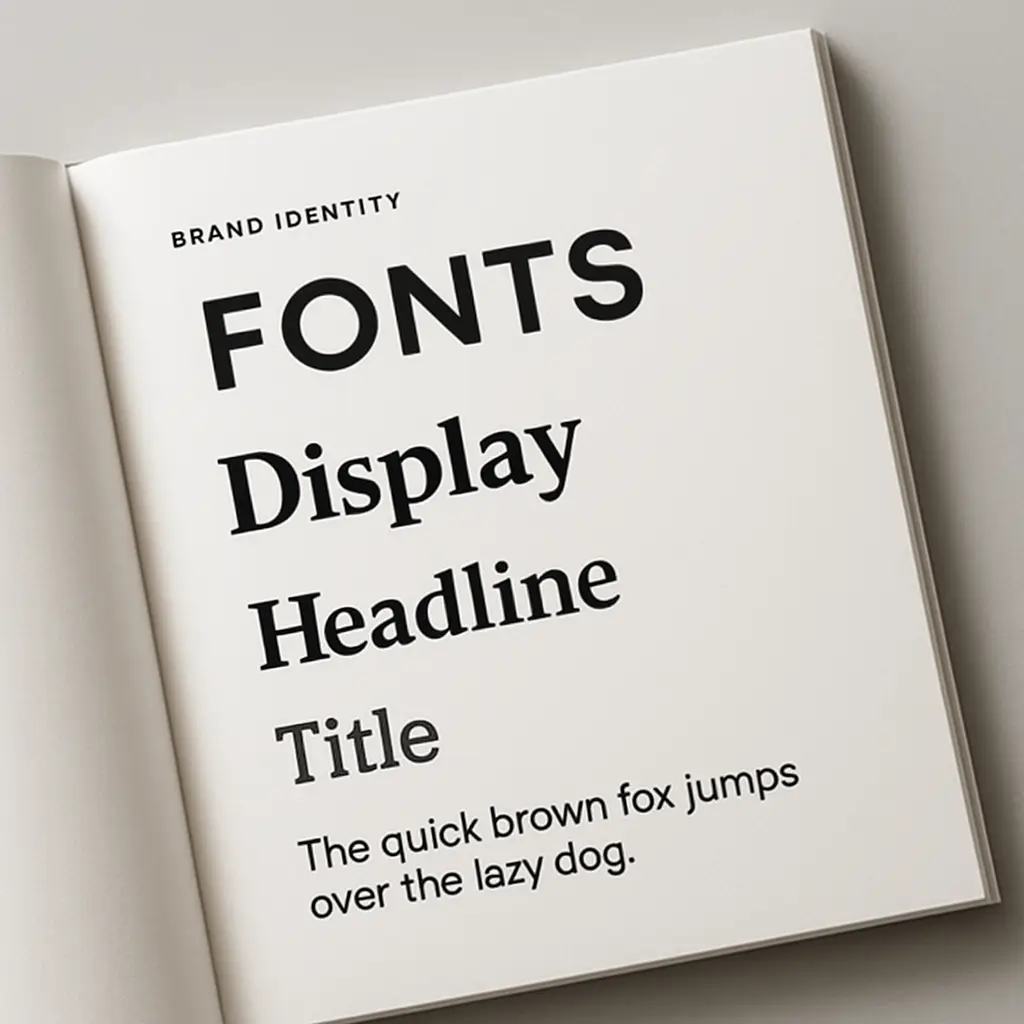
Master choosing the right fonts for your brand. Learn font psychology, pairing, and legibility to craft a powerful brand identity that connects with your audience.