

How to Choose the Right Signage for Your Small Business
Learn how to choose the right signage for your small business. This guide covers defining purpose, location, brand identity, sign types, regulations, and budget for effective results.

As a small business owner, you wear countless hats—CEO, marketer, salesperson, and, yes, often the graphic designer. The challenge is real: you need stunning visual content to stand out, but you may lack the budget for a design team or the time to master complex software. This is precisely where the power of Canva for small business comes into play. It’s a revolutionary graphic design tool that levels the playing field, empowering entrepreneurs to create professional-quality marketing materials with surprising ease. From eye-catching social media graphics to polished business cards, Canva makes top-tier design accessible to everyone. In this guide, we’ll walk you through 10 quick wins to immediately elevate your small business design, helping you build a brand that looks as incredible as the work you do. Let’s unlock your creative potential.

Consistency is king in branding. A cohesive look across all your touchpoints builds trust and makes your business instantly recognizable. This might sound like a daunting task, but it’s one of the most powerful features of Canva for small business. Enter the Canva Brand Kit: your centralized hub for effortless brand consistency. In just a few minutes, you can upload your logos, define your exact brand color palette, and select your primary and secondary fonts. Once your Brand Kit is set up, these elements are always accessible with a single click inside the editor. This completely eliminates guesswork and ensures every piece of visual content you create—from social media graphics to official documents—is perfectly on-brand. It’s a foundational Canva tip that instantly elevates your small business design and solidifies your professional image across all marketing materials.
Inside your Canva Brand Kit, you’ll see a dedicated section for logos. Simply click the plus icon or ‘Upload’ button and select your logo file from your computer. For the best results in your small business design, we recommend using a high-resolution version with a transparent background (a .PNG file is perfect for this). Once uploaded, your logo is stored and ready to be dragged and dropped into any new design, ensuring your most important brand asset is always on hand and correctly applied.
Next in your Canva Brand Kit is your color palette, where you lock in the hues that define your brand’s personality. You can easily add your brand’s specific colors using their hex codes (e.g., #1A2B3C). Once saved, this custom palette appears at the top of the color options in every new project. This simple step guarantees that every piece of visual content you create uses the exact right shades, building a powerful and consistent look for your small business design across all marketing materials.
Typography is the voice of your brand, and consistency here is crucial. The final piece of your Canva Brand Kit setup is selecting your brand fonts. You can designate specific fonts for headings, subheadings, and body text, ensuring every piece of visual content you produce speaks in the same tone. With Canva for business, you can even upload your own custom fonts for a truly bespoke feel. This eliminates guesswork and guarantees all your marketing materials maintain a cohesive, professional look that reinforces your brand identity.
Keeping your social media feed fresh with engaging content can feel like a full-time job. This is where one of the most powerful features of Canva for small business becomes your greatest asset: the massive library of professionally designed Canva templates. Instead of staring at a blank canvas, you can instantly access thousands of stunning layouts for Instagram posts, Facebook stories, Pinterest pins, and more. This is a game-changing Canva tip for rapid content creation. Simply choose a template that catches your eye, and then customize it. With your Brand Kit already established, you can apply your brand colors and fonts with a single click, instantly transforming the template into your own unique piece of visual content. This process allows you to produce a week’s worth of high-quality social media graphics in a fraction of the time, making it an essential workflow for creating effective marketing materials efficiently.
Navigating Canva’s vast library is simple. On the home page, use the search bar to type in exactly what you need, such as “Instagram Post” or “Facebook Cover.” This immediately filters the Canva templates to the correct dimensions for that specific platform. You can further refine your search by adding keywords related to your theme, like “summer sale” or “new product.” This targeted approach is a core part of an efficient Canva for business workflow, allowing you to find the perfect starting point for your social media graphics in seconds.
Once you’ve selected one of the many Canva templates, the magic happens. The key to speed is using your pre-set Canva Brand Kit. With a single click, you can apply your brand’s color palette and fonts to the entire design. Next, simply drag and drop your own image to replace the placeholder photo. Finally, update the text to reflect your message. This streamlined process is a game-changer for small business design, turning a generic template into a unique piece of visual content in minutes.
Once you’ve perfected a design, don’t let that effort go to waste. A pro-level Canva tip is to save your customized creation as a brand-specific template. By making a copy of your finished design, you create a personal, reusable asset that is already infused with your branding. This builds your own library of on-brand starters for announcements, sales, or testimonials, dramatically speeding up your future visual content creation. It’s a smart workflow that turns this powerful graphic design tool into a truly repeatable system.
Data is a powerful way to build credibility, but a spreadsheet of numbers can quickly lose your audience’s attention. A crucial Canva tip for any small business is to transform that data into compelling visuals. Whether you’re showcasing customer satisfaction rates, quarterly growth, or an interesting industry statistic, Canva for small business makes it easy. Forget about wrestling with clunky chart tools; Canva has built-in features to create beautiful bar graphs, pie charts, and line graphs in just a few clicks. Simply choose your chart type, enter your data, and watch it come to life. Best of all, you can instantly apply your Canva Brand Kit colors to ensure it aligns perfectly with your small business design. This powerful feature turns dry information into engaging visual content, making your reports, presentations, and social media posts far more impactful and professional.
To access this powerful feature, simply go to the ‘Elements’ tab on the left-hand side of the Canva editor and search for “Charts.” You’ll see a collection of options like bar graphs, pie charts, and more. Select the type that best suits your data, and a simple spreadsheet interface will appear. Enter your labels and values, and watch the chart update in real-time. Then, with a single click, apply your Canva Brand Kit colors to ensure your new data visualization perfectly matches your brand’s aesthetic.
A single, impactful statistic is perfect for social media, but plain text gets ignored. A better approach is to create a dedicated graphic. Start with a social media graphics template and make the number (e.g., “78%”) the hero using a large, bold font. Add a simple headline and your source. This simple act transforms a boring fact into powerful visual content. It’s a quick win for small business design that makes your data memorable, shareable, and an effective piece of your marketing materials.
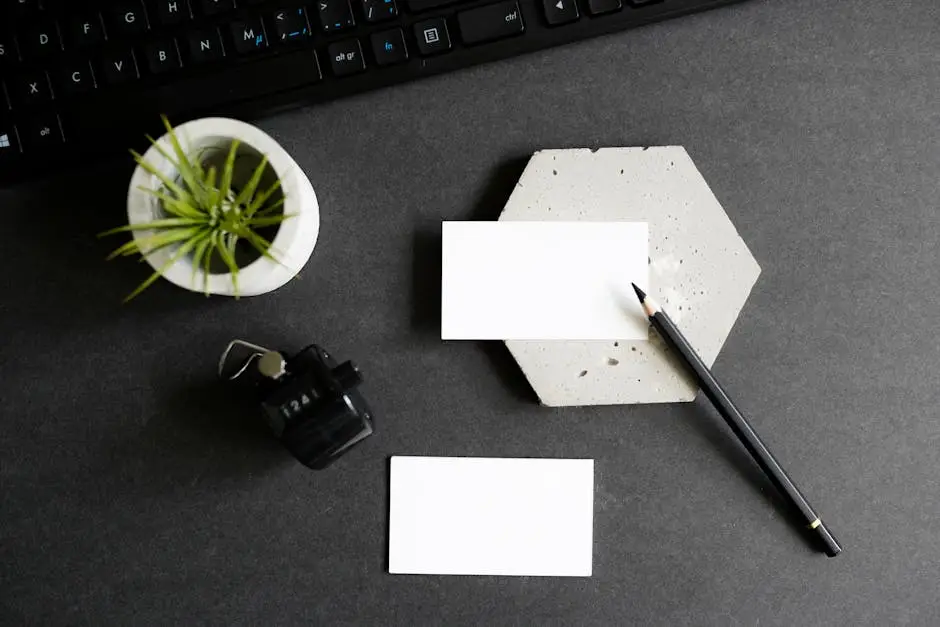
While so much of today’s marketing is digital, tangible marketing materials like business cards and flyers are still vital for networking and making a lasting first impression. This is another area where using Canva for small business truly shines, bridging the gap between your online presence and physical branding. Forget the high costs and complex file requirements of traditional print designers. Canva offers a massive library of stunning Canva templates for business cards, flyers, brochures, and more. You can easily select a layout, apply your Canva Brand Kit to ensure complete consistency with your colors and fonts, and add your contact details. This simple workflow guarantees your small business design is cohesive everywhere a customer interacts with it. Once finished, this powerful graphic design tool lets you download a high-quality, print-ready PDF, ensuring your physical assets look just as professional as your digital ones.
Begin by searching the Canva templates library for your specific need, such as “business card” or “event flyer.” Canva automatically presents layouts that are pre-formatted for professional printing standards. These templates are designed with correct dimensions and safe zones, taking the technical guesswork out of your small business design process. This ensures that when you create your physical marketing materials, important details won’t be cut off. Simply select a style that aligns with your brand, confident that the foundation is correctly set up for a high-quality print result.
After selecting your print-ready template, personalization is incredibly fast. This is where your pre-set Canva Brand Kit becomes invaluable. With just a few clicks, you can instantly apply your brand’s color palette and fonts, creating a cohesive look that matches all your other marketing materials. Next, simply edit the text fields to add your name, contact details, and website. This simple workflow ensures your physical small business design is a perfect extension of your digital brand, creating consistent and professional visual content.
Once your design is complete, exporting it correctly is the final, crucial step. Click the ‘Share’ button in the top right, then ‘Download.’ From the file type dropdown, it’s vital you select ‘PDF Print.’ This option creates a high-resolution, 300 DPI file required by professional printers. For best results, also check the box for ‘Crop marks and bleed.’ This adds the necessary guides for the printer to trim your marketing materials accurately, ensuring your small business design extends to the very edge without any unwanted white borders.
Clean, professional product photos are non-negotiable for selling online, but getting that polished look can be a major challenge. This is where one of the most celebrated features of Canva for small business becomes a game-changer: the one-click Background Remover. Forget spending hours trying to trace outlines in complex software. With Canva, you simply upload your product photo, select the image, and click ‘Edit Photo’ > ‘BG Remover.’ In seconds, the tool magically removes the distracting background, leaving you with a perfect, clean cutout of your product. This is a crucial Canva tip for creating high-quality visual content for your website, e-commerce store, and social media graphics. You can then place your product on a solid brand-colored background or incorporate it into other marketing materials, instantly elevating your small business design and making your offerings look incredibly professional.
To use this powerful feature, first upload your product image into your Canva design. Once it’s on the canvas, simply select the image to activate the editing toolbar at the top. From there, click on ‘Edit Photo’ and then select the ‘BG Remover’ tool. In just a few seconds, Canva’s AI isolates your product by erasing the background. The result is a clean, professional cutout ready for your small business design. This isolated asset can be resized and placed onto any background, perfect for creating clean visual content.
Once your product is isolated, the next step is to give it a home that reinforces your brand. Simply click on the design’s background and select the color tile in the top-left corner. Your Canva Brand Kit palettes will be right there, ready to go. Applying one of your brand colors creates a professional, studio-like effect that makes your products pop. This technique is fundamental for creating consistent visual content across all your marketing materials, elevating your small business design with minimal effort.
In today’s fast-scrolling digital world, a static image can easily be overlooked. The key to capturing your audience’s attention is movement, and this is where another powerful capability of Canva for small business shines. You don’t need to be a video editor to create dynamic content. With Canva’s built-in animation tools, you can bring your designs to life with just a few clicks. Simply select an entire page or individual elements—like text or icons—and choose from a library of professional animation styles like ‘Fade,’ ‘Pan,’ or ‘Rise.’ This simple Canva tip instantly transforms a standard graphic into a more engaging piece of visual content. Using animation in your social media graphics is a proven way to stop the scroll, increase engagement, and make your small business design feel modern and polished, turning simple posts into eye-catching marketing materials.
In Canva, you have two easy ways to add motion. For a quick, cohesive effect, simply click on your design’s background and select the ‘Animate’ button from the top toolbar to apply a style to the entire page. Alternatively, for more dynamic control, click on a specific element, like a text box or an icon, and then choose an animation just for it. This powerful flexibility is a huge win for small business design, allowing you to create engaging social media graphics that feel professional and stop the scroll.
Once you’ve animated your design, the final step is to save it in a format that retains the motion. Go to the ‘Share’ button and select ‘Download.’ Under file type, you’ll have two key choices: MP4 Video or GIF. For high-quality social media graphics with sound, choose MP4. For a smaller, silent, looping animation that’s perfect for emails or web embeds, select GIF. This final step is crucial for turning your animated ideas into effective, shareable visual content for your audience.

Whether you’re pitching to a new client, hosting a webinar, or presenting a quarterly report, a professional presentation is non-negotiable. This is another area where Canva for small business excels, transforming the entire process. The platform offers thousands of stunning, multi-page presentation Canva templates, giving you a powerful head start. The real magic happens when you apply your Canva Brand Kit. With a single click, you can infuse every slide with your brand’s colors, fonts, and logo, ensuring absolute consistency. This turns what was once a time-consuming task into a streamlined workflow, allowing you to create crucial marketing materials that look incredible. The result is a highly professional pitch deck that elevates your small business design and builds credibility, making this powerful graphic design tool essential for crafting compelling visual content.
To start, simply search for “Presentation” on the Canva home screen. This reveals a wealth of multi-page Canva templates that are far more than single-slide designs. These are complete, cohesive decks featuring a variety of layouts for title slides, agendas, data points, and conclusions. This structured approach is a massive time-saver for any small business design project. It provides a professional framework from the outset, ensuring your presentation’s visual content is not only on-brand but also logically organized and compelling.
After selecting one of the multi-page Canva templates, your next stop is the ‘Styles’ tab in the editor. This is where the power of your pre-set Canva Brand Kit truly shines. With a single click, you can apply your primary color palette and fonts across every slide simultaneously. You can even shuffle through different combinations to find the perfect feel. This simple step ensures that your entire presentation—a key piece of your marketing materials—maintains a polished and consistent look, solidifying your professional small business design.
A powerful headline is essential for grabbing attention, but flat, plain text often gets lost in the visual noise of social media. This is where another simple yet impactful feature of Canva for small business comes into play: Text Effects. This powerful tool allows you to add professional styling to your typography with a single click, instantly making your headlines pop off the page. Instead of just picking a font and color, you can now apply effects like a subtle drop shadow for depth, a stylish outline for a modern feel, or a vibrant neon glow to command attention. This is a game-changing Canva tip for enhancing your small business design. It transforms standard text into compelling visual content, ensuring your key messages on social media graphics and other marketing materials are impossible to ignore.
To find these effects, simply select a text box and click ‘Effects’ in the top toolbar. You’ll discover a menu of powerful options. The ‘Shadow’ effect adds professional depth, making text easier to read. ‘Lift’ creates a subtle, dark glow that helps your headline gently stand out from a background. For high-impact promotions, the ‘Neon’ effect makes your text vibrant and unmissable. Experimenting with these one-click styles is a fast way to upgrade your small business design and create more dynamic visual content.
The true power of this feature is that it works seamlessly with your established branding. When you select your text, it will automatically use the fonts you defined in your Canva Brand Kit. Applying an effect like a subtle shadow or outline is an enhancement, not a departure from your style. This combination allows you to add visual flair while maintaining brand recognition, a critical component of effective small business design. It ensures your marketing materials are both eye-catching and consistently professional.

As your business grows, design is rarely a solo mission. You might work with a virtual assistant, a partner, or a social media manager. This is where the collaborative power of Canva for small business transforms your workflow. Forget the chaos of endless email chains, confusing feedback, and wondering if everyone is using the latest version of a design. With Canva’s team features, you can share a design with a simple link, allowing others to view, comment directly on specific elements, or even make edits in real-time. This creates a single source of truth for all your visual content. Everyone on your team can access the shared Canva Brand Kit and templates, ensuring every piece of small business design remains consistent. This powerful capability turns your graphic design tool into a centralized hub for creating polished marketing materials together, saving time and eliminating costly miscommunications.
Sharing your work is incredibly straightforward. Click the ‘Share’ button in the top-right corner of the editor. You can then generate a shareable link and, most importantly, control access levels. Select ‘View only’ for a simple review, ‘Can comment’ to gather targeted feedback on your visual content, or ‘Can edit’ to grant a team member full access. This simple permission setting is a crucial Canva tip that puts you in control of your small business design process, ensuring smooth collaboration on all your marketing materials.
This is where the real collaborative magic happens. Instead of vague email feedback, Canva allows anyone with comment access to click on a specific element—a photo, text box, or logo—and leave a comment directly attached to it. You can even tag team members with an ‘@’ to notify them. This is a game-changing Canva tip that makes the revision process for your visual content crystal clear. All feedback is contextual, eliminating confusion and streamlining how your team perfects its marketing materials.
Creating beautiful content is only half the battle; consistently publishing it is what drives results. One of the most powerful, time-saving features of Canva for business is the built-in Content Planner. This elevates the platform from just a graphic design tool to an end-to-end content machine. Instead of designing your social media graphics, downloading them, and then manually uploading them to each platform, you can schedule them to post directly from Canva. After perfecting your design, simply click ‘Share’ and select ‘Schedule.’ You can connect your social media accounts, choose a date and time, and write your caption. This is a game-changing Canva tip for batching your content creation. It streamlines your entire workflow, ensures a consistent posting schedule, and frees up invaluable time, making it one of the most impactful wins for any busy small business owner.
To use the Content Planner, you first need to link your social profiles. From the Canva home page, click on ‘Content Planner’ in the left-hand menu. You’ll be prompted to connect an account, with support for major platforms like Instagram, Facebook, Pinterest, and more. The process is simple and secure; just follow the on-screen steps to authorize Canva to post on your behalf. This quick, one-time setup is a crucial first step to leveraging the full power of Canva for business and streamlining your workflow.
With your accounts linked, scheduling your finished visual content is incredibly simple. Inside the editor, click the ‘Share’ button and choose ‘Schedule.’ This opens a calendar where you select your desired date and time. You can then write your caption and add relevant hashtags right there in Canva before confirming. This brilliant Canva tip completes the entire workflow, turning your favorite graphic design tool into a full-fledged content hub and ensuring your social media graphics post consistently.
As we’ve explored through these 10 quick wins, the power of Canva for small business lies in its ability to transform design from a daunting challenge into an achievable daily habit. It’s far more than just a graphic design tool; it’s a strategic partner that empowers you to create stunning, professional marketing materials on your own terms. By leveraging features like the Brand Kit for consistency, templates for speed, and advanced tools like the Background Remover and Content Planner, you can produce high-quality visual content without a steep learning curve. The key is to start small. Implement one of these tips today and see the immediate impact. By integrating these simple workflows, you can ensure that exceptional small business design is no longer an occasional project, but a consistent, powerful part of your brand’s growth and success story.
Learn how to choose the right signage for your small business. This guide covers defining purpose, location, brand identity, sign types, regulations, and budget for effective results.

Keep your outdoor signs looking new with our Sign Maintenance 101 guide. Learn how to clean, inspect, and protect business signs for lasting impact and avoid costly repairs.

Discover sustainable signage for your business in 2025. Explore eco-friendly materials like reclaimed wood, bamboo, and recycled metals, plus innovative green ideas.